Send the proposal
Who can do it: Partner, manager or associate
Where: The proposal builder, step Preview and send
The preview shows the PDF exactly as the client will get it. Click Edit beside it to change any wording first.
-
Click Send.
-
Check Email it to. BiB fills in the email of the person in Prepared for, or the company's email. The line under it says where the client's replies will go.
-
Add Your note if you like. It is printed above the standard letter.
-
Click Send by email.
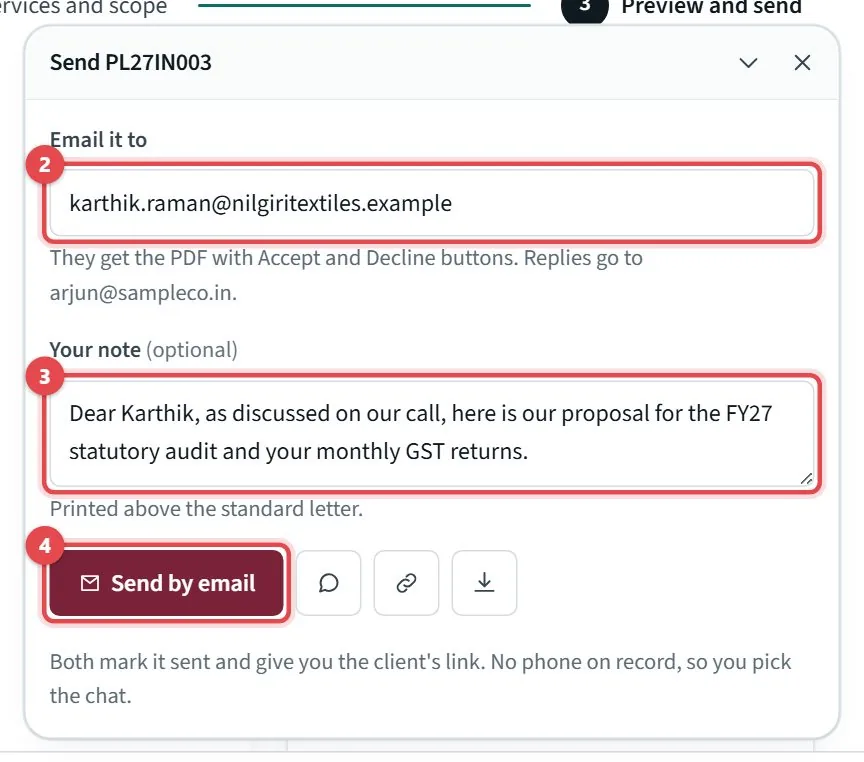 Sending the Nilgiri proposal to Karthik Raman.
You see "Emailed to … with the PDF and the Accept and Decline buttons." The link to the client's page shows once, below it, in case you want to share it yourself (Open WhatsApp, Copy the link). The same panel later holds Record client's acceptance, Client declined and Send again.
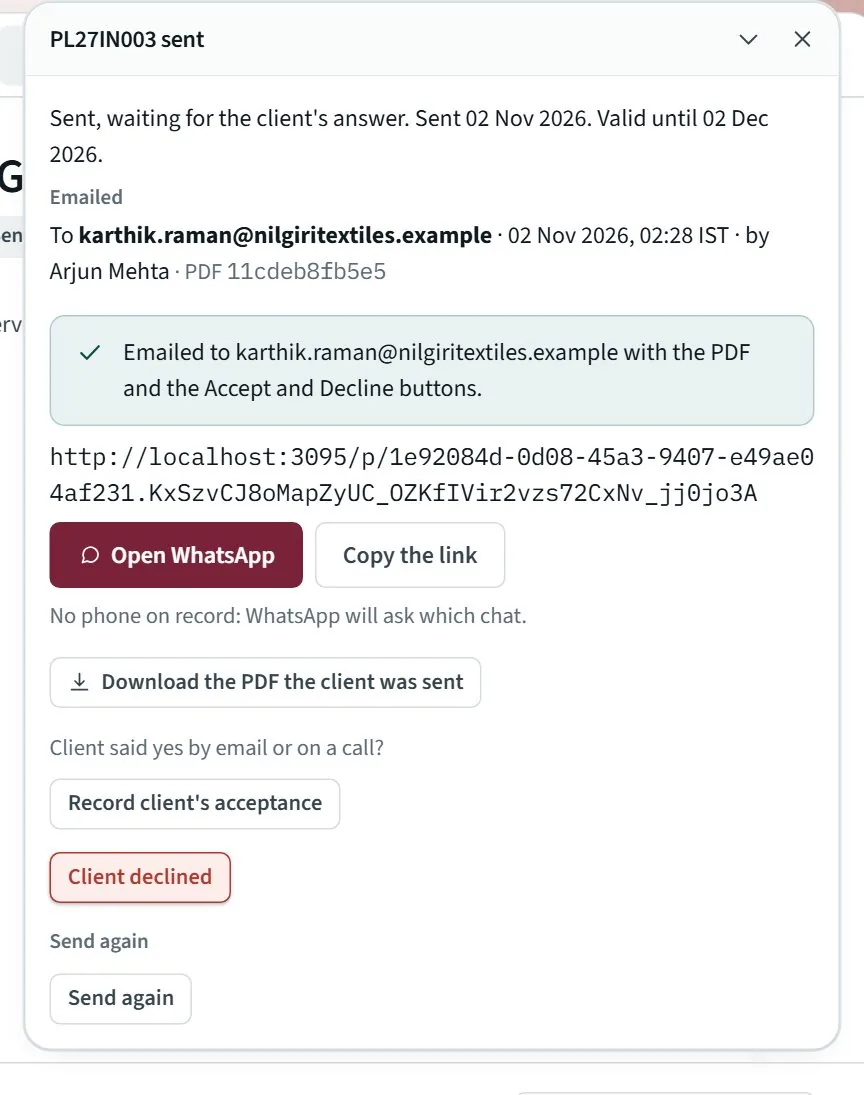 The proposal is out. The link shows once.
The small buttons beside Send by email are Send on WhatsApp, Just give me the link and Download PDF. The first two also mark the proposal sent and give you the client's link.
Send again makes a new link. The old link stops working. Example: you resend on Tuesday; the button in Monday's email now opens "This link does not work".