Check the preview and add the terms
Who can do it: Partner, manager or associate
Where: The letter builder, step Preview and send
-
Read the letter on the left. Click Edit beside it to change any part: the cover letter (date, addressee, subject, opening lines, Signed by), acceptance, background, services, fees, team and exclusions.
-
Click Add all standard terms for … to put your firm's terms (Annexure 2) on the letter. Or add them one by one with Add one term.
-
Read the Before you send strip. Everything it says is needed must be fixed; the "to check" items are warnings.
-
Optional: click Download PDF to read it on paper.
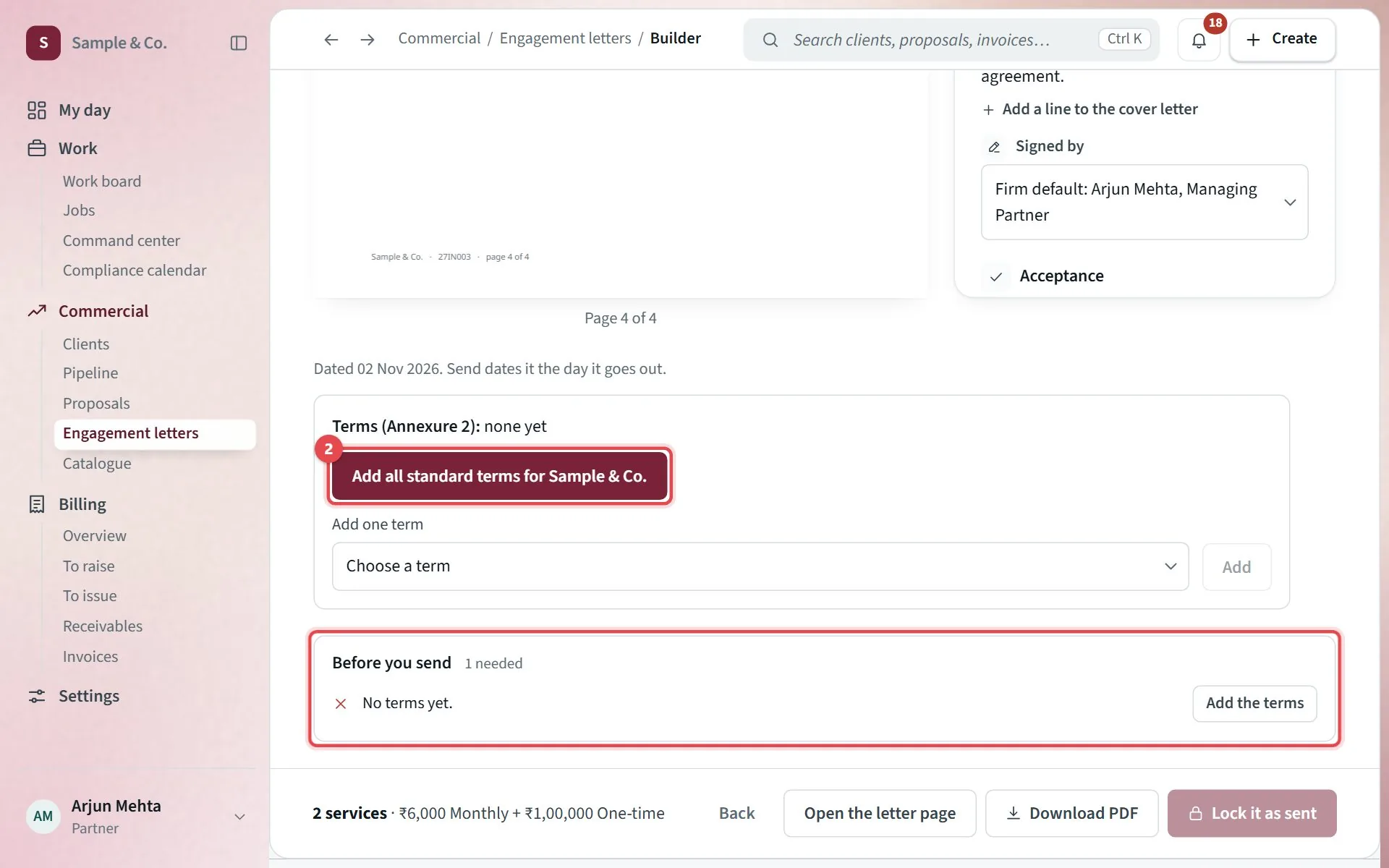 Before you send: the Nilgiri letter still has no terms.
| Before you send says | Do this |
|---|---|
| "No service on the letter yet." | Click Add services. |
| "No opening paragraph in the cover letter." | Click Add one and write a few lines. |
| "No terms yet." | Click Add the terms. |
| "Some of this work has no SPOC" | Click Set a SPOC and choose one on the client's Account team. |
| "No acceptance line above the client's signature." | Add one under Acceptance in Edit. |
| "… has no tax rate for advance invoices, so the advance is not drafted at signing." | Ask your partner or admin to set the tax rate (Set it). |
Who signs for your firm The partner under Signed by in the Edit list signs for the firm ("Printed under Yours sincerely."). Your firm's default signatory is filled in for you.
Fix the gaps once, not on every letter. If every letter says "No opening paragraph" or "No terms yet", your firm's standard wording is not set up. See "Write the opening and the acceptance paragraph" and "Put the standard terms on a letter" in the setup guide.