Check your roles
Who can do it: Partner
Where: Settings › The firm › Roles
A role is what a person may do. Each person has one role.
-
Open Roles. The tab Our firm is your staff; Clients is your clients' people.
-
Read across: one row per thing a person may do, one column per role. A tick means the role may do it.
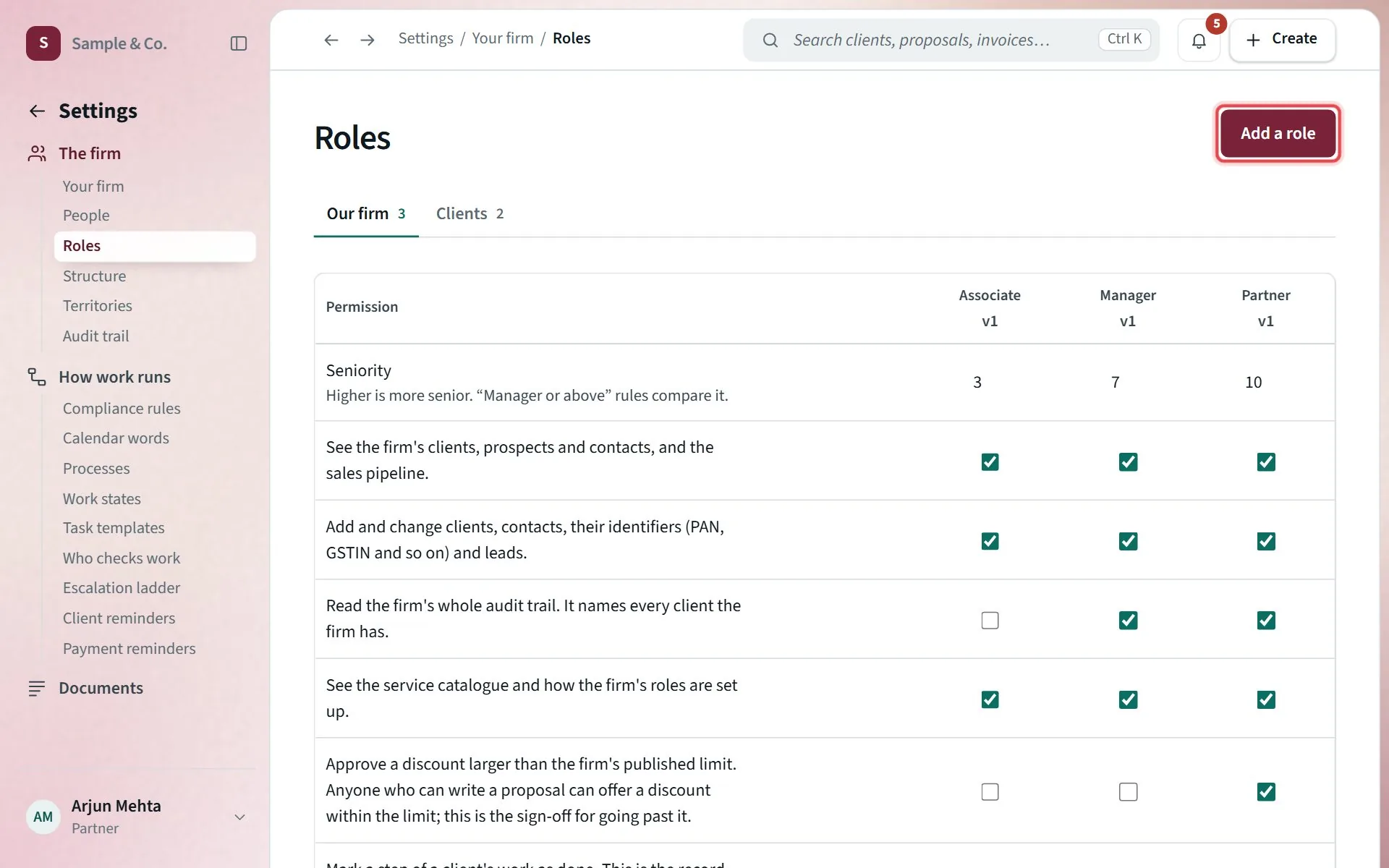 Roles. Seniority is the row near the top. Add a role is the next task.
-
To change a role, tick or untick its boxes. A Publish button appears under that role's column.
Click Publish.
| Role | Seniority | What it may do, to start with |
|---|---|---|
| Partner | 10 | Everything, including all firm settings, approving proposals and seeing the audit trail |
| Manager | 7 | Clients and work, the audit trail, skipping a bill, advances, cancelling jobs, approving engagement letters |
| Associate | 3 | See and edit clients, do work, read the settings |
Seniority drives "Manager or above". Rules such as who may check work compare seniority numbers. A Senior associate at 5 is below Manager (7), so it does not count as "Manager or above".
A change applies to everyone with that role, at once. Seeing fees is not part of any role. You set it per person on People.
Add a role
-
Click Add a role.
Type a Short name (for example senior-associate) and a Name (Senior associate).
-
Type its Seniority, if it should count in "or above" rules.
-
Tick what it may do.
-
Click Create and publish.
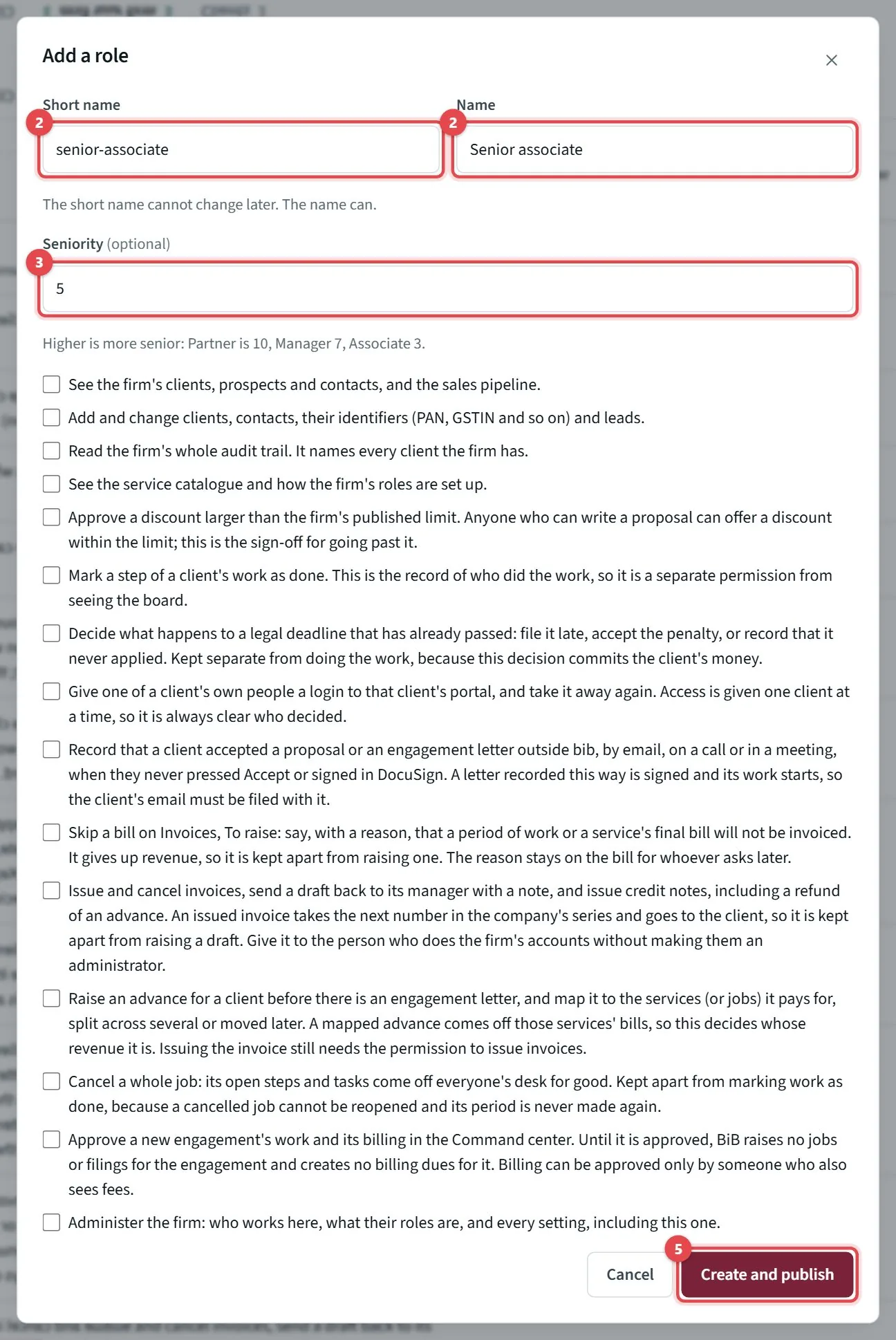 A new role: its names (2), Seniority (3) and Create and publish (5).
"The short name cannot change later. The name can."
| You see | Do this |
|---|---|
| "Publishing this would leave the firm's administrator permission only on …" | Someone must always be able to run the firm. Give another person an administrator role first. |