Turn on automatic billing
Who can do it: Partner
Where: Settings › The firm › Your firm , then Automatic billing under Billing
Before you start: Your clients' engagement letters are signed, and their billing is approved in the Command center.
With automatic billing on, BiB writes a bill on its own when each period of a service falls due. The bill waits on Billing › To raise until someone turns it into an invoice.
-
Open Automatic billing.
-
In Starts from, choose the first month BiB should bill.
-
Turn on Make a bill when each period falls due.
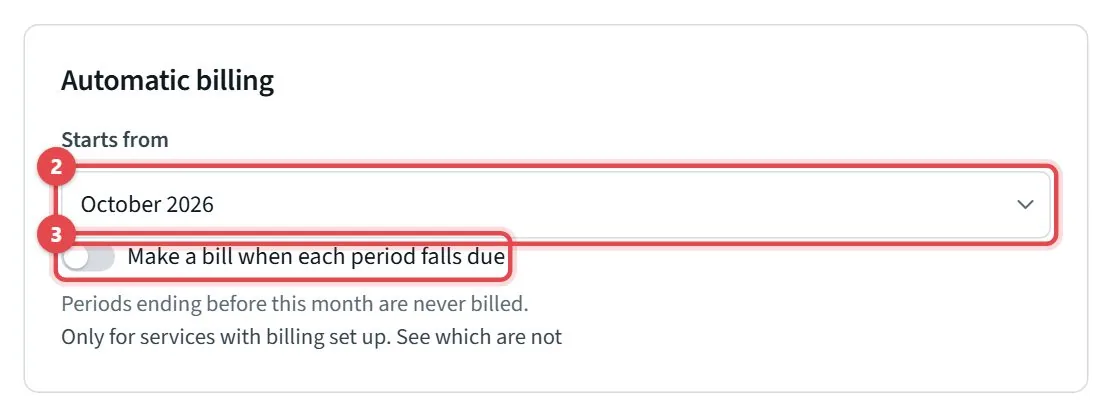 Choose the month first (2), then turn on the switch (3).
The line under the switch now says, for example, "On from October 2026. Earlier periods are not billed."
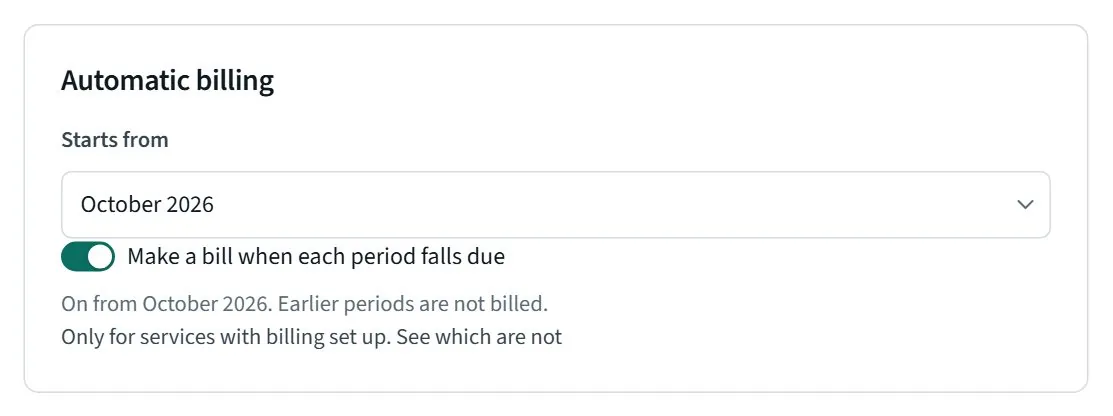 Automatic billing is on.
BiB looks for bills that have fallen due once a day, on its own. New bills appear on Billing › To raise after that daily run. (The message after the switch still says "Bills appear under Invoices, To raise". It means the same list: Billing › To raise .)
Choose the month before the switch. The switch starts billing from the month shown in Starts from at that moment. Periods that end before that month are never billed. Example: you choose November 2026. October's bookkeeping fee is never billed by BiB. Raise it by hand if the client owes it.
Wrong month? Choose the right month in Starts from and click Change month.
Only services with billing set up are billed. A service needs a first bill date before BiB can bill it. Click See which are not under the switch to find services that have none. Part 2, "How bills come to exist", explains how to set one.
To stop automatic billing, turn the switch off. The message says "Automatic billing is off. No new bills are made." Bills already on To raise stay there.