Record your company's GST status
Who can do it: Partner
Where: Settings › The firm › Your firm , then Invoices under Billing
BiB will not issue an invoice until it knows whether your company is registered for GST.
- Find your company in the card Bank details and LUT on invoices. The grey line under its name shows its status, for example "India · Not registered for GST". If the status is already right, go to the next task.
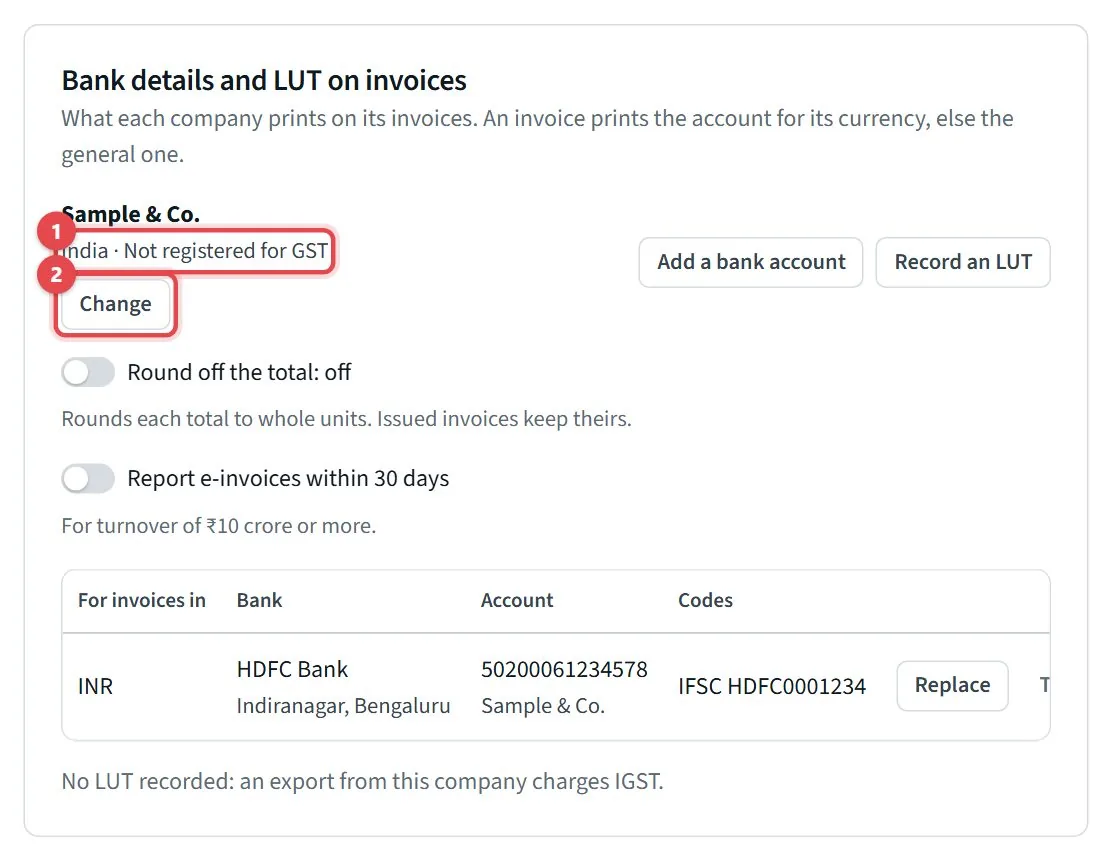 The grey line shows the GST status (1). Change (2) opens the choices.
- Click Change if the status is wrong. Then do one of these:
- If the company is registered, click Add GSTIN and type the 15-character GSTIN.
- If it is not registered, turn on Not registered for GST. Its invoices then go out without GST.
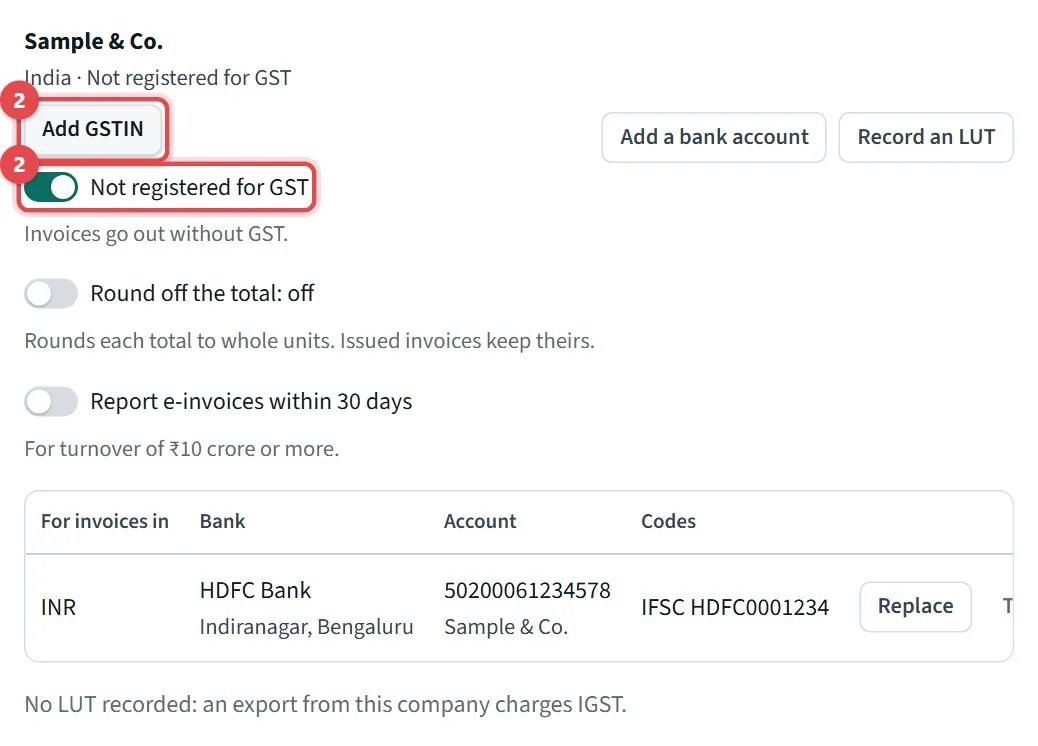 Add GSTIN, or the Not registered for GST switch.
A registered company prints "GSTIN …" on that line instead.
No GST status means no invoices. A company with no GSTIN, and without Not registered for GST turned on, cannot issue anything. Issuing says: "Sample & Co. has no GSTIN. Add it on Your firm, or mark the company as not registered for GST."
GST invoices need two more things. A registered company's invoices print each line's SAC code (see "Give each service its SAC code and GST rate"). They also print the place of supply, which BiB reads from the client's state or GSTIN.