Add the bank account printed on invoices
Who can do it: Partner
Where: Settings › The firm › Your firm , then Invoices under Billing
Before you start: Keep the account number, IFSC and branch ready.
-
In Bank details and LUT on invoices, click Add a bank account next to your company.
-
Fill in Name on the account, Account number, Bank and Branch.
-
Fill in IFSC. For clients abroad, also fill in SWIFT and, if you have one, IBAN.
-
In For invoices in, choose a currency, or leave Any currency (the general account).
-
Click Add it.
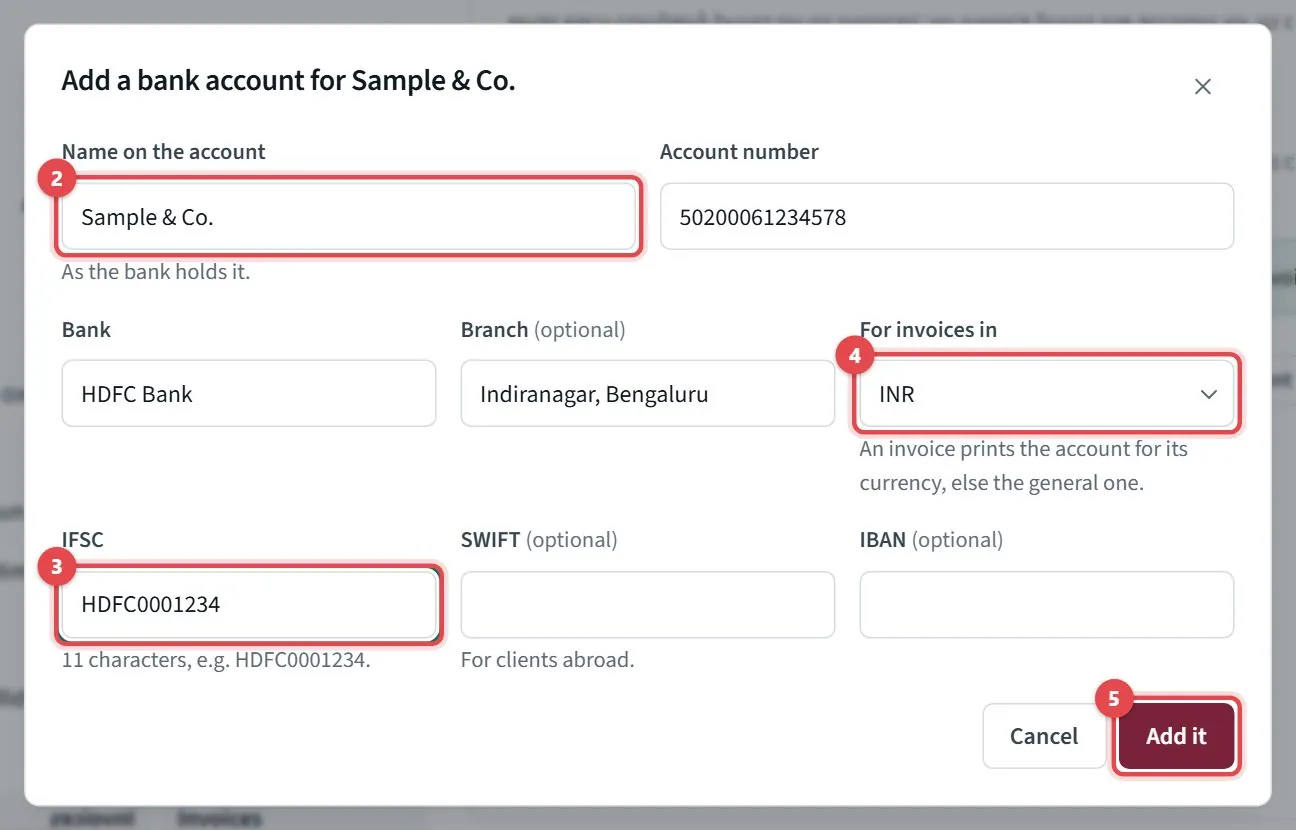 The filled form: the account (2), the IFSC (3), the currency (4), then Add it (5).
The account now prints on every invoice from that company in that currency. An invoice prints the account for its own currency, or else the general one.
No bank account does not stop an invoice. Without one, the invoice still goes out, but it prints no payment details. Drafts warn about this with "No bank account".
Exporting services? Record your LUT. Click Record an LUT and fill in Financial year, ARN and Filed on, then click Record it. Without a recorded LUT, the card says "No LUT recorded: an export from this company charges IGST."
Two switches sit in the same card:
- Round off the total rounds each invoice total to whole rupees. Invoices already issued keep their totals.
- Report e-invoices within 30 days is for firms with a turnover of ₹10 crore or more. With it on, the invoice list shows the last day to report each e-invoice.