Send the invoice to the client
Who can do it: Partner or manager
Where: the issued invoice, More menu
The client's portal contacts see an issued invoice straight away. To email it as well:
- Open the invoice and click More.
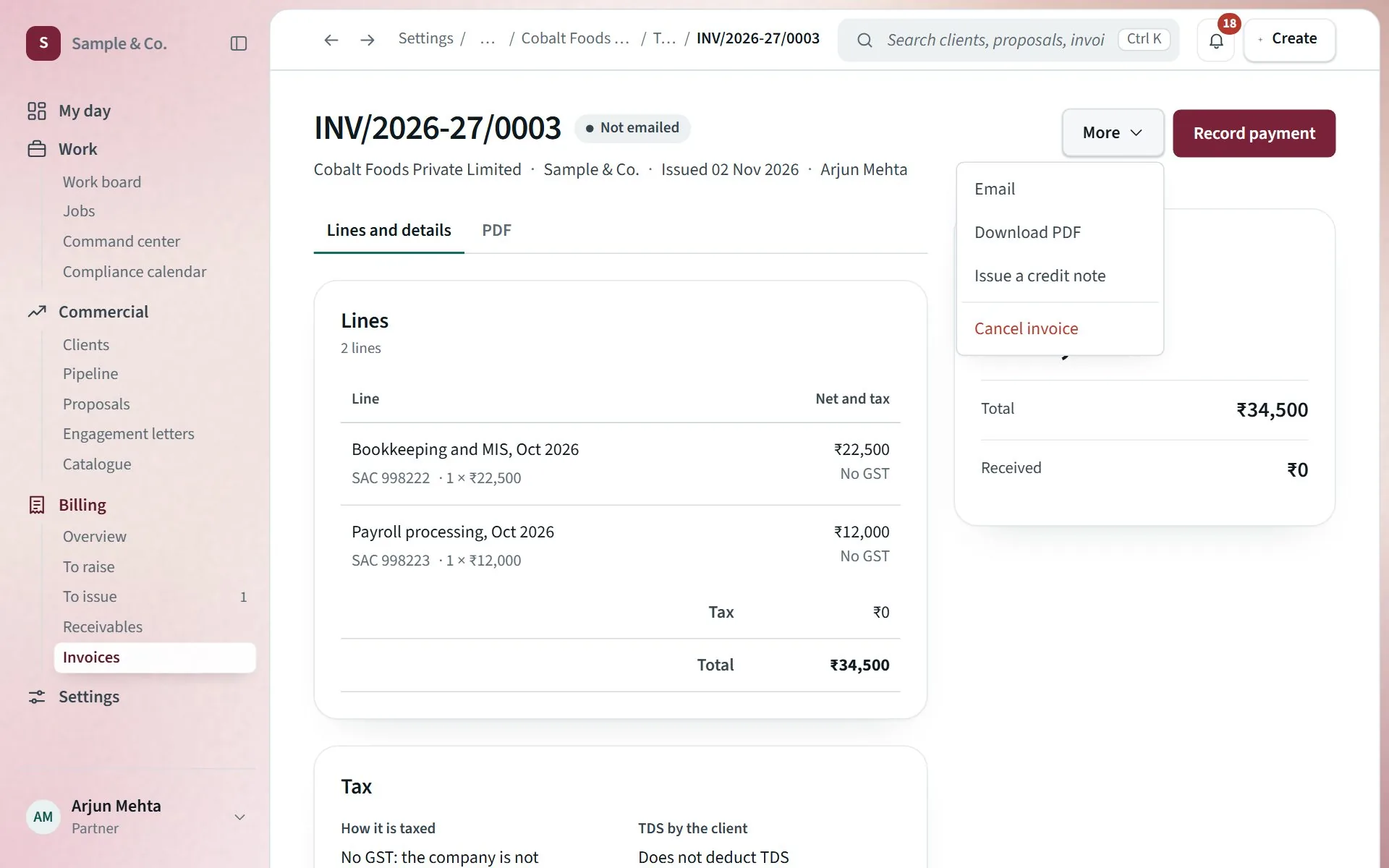 The More menu on an issued invoice.
-
Click Email.
-
Check To, Cc, Subject and Message. The PDF goes with it.
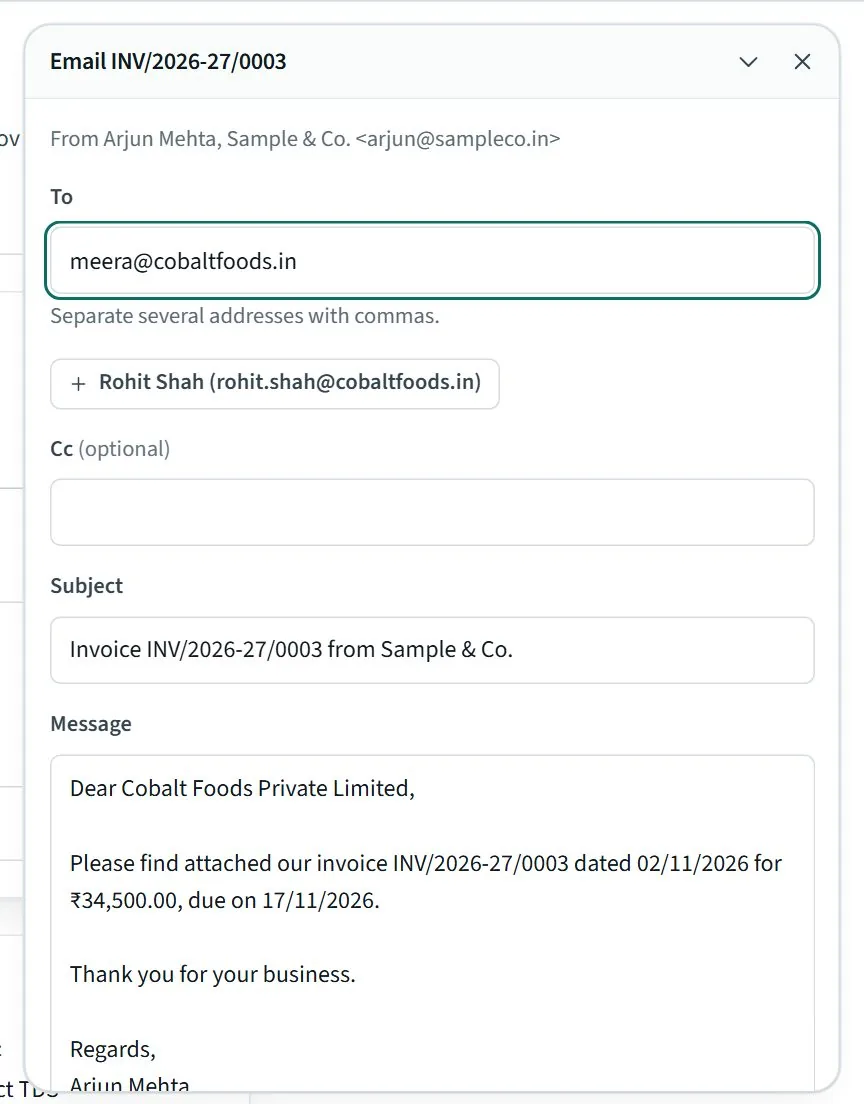 The email, ready to send.
- Click Send.
To keep a copy, click Download PDF in the same menu, or switch the page to PDF to read it.
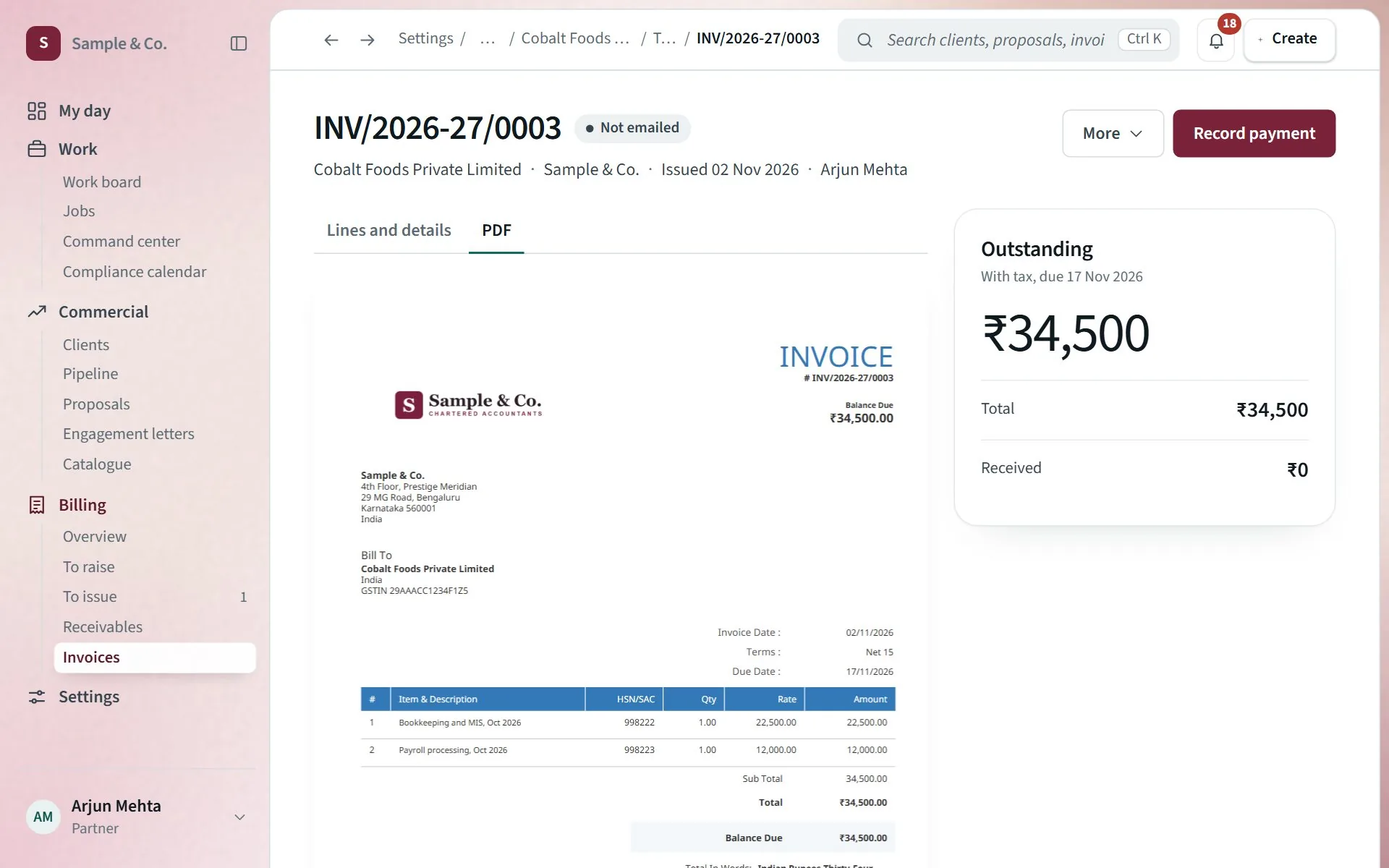 The issued invoice as a PDF.
| You see | Do this |
|---|---|
| "This invoice is a draft. Issue it first; then it can be emailed." | Issue it first. |
| "The email was not sent: the mail server answered … Try again." | Try again later. If it keeps failing, tell your BiB contact. |
Add the e-invoice IRN
A GST invoice to a client that has a GSTIN must carry its e-invoice IRN before it goes out. Until then it shows under the Needs IRN chip on Billing › Invoices , it cannot be emailed, and the client does not see it.
-
Register the invoice on the government's e-invoice portal, as you do today.
-
On Billing › Invoices , click the Needs IRN chip, then Add IRN on the invoice.
-
Paste the portal's answer into Paste the portal's answer. The boxes fill themselves. Or type the IRN, Ack No., Ack Date and Signed QR code.
-
Click Record, then Record it.
The IRN cannot be changed later, so check it before you record it. If your firm sends invoices through Zoho Books, Zoho registers the IRN and BiB reads it back by itself.