See what is due
Who can do it: Everyone
Where: Work › Compliance calendar , tab Due
-
Open the calendar. The Month view shows the month on the left. Each ring around a date is a filing: orange is Pending, red is Past the date. A dot is a Reminder. Today has a filled red circle.
-
Click a date to see only that day's filings on the right. Click Whole month to go back. The arrows change the month.
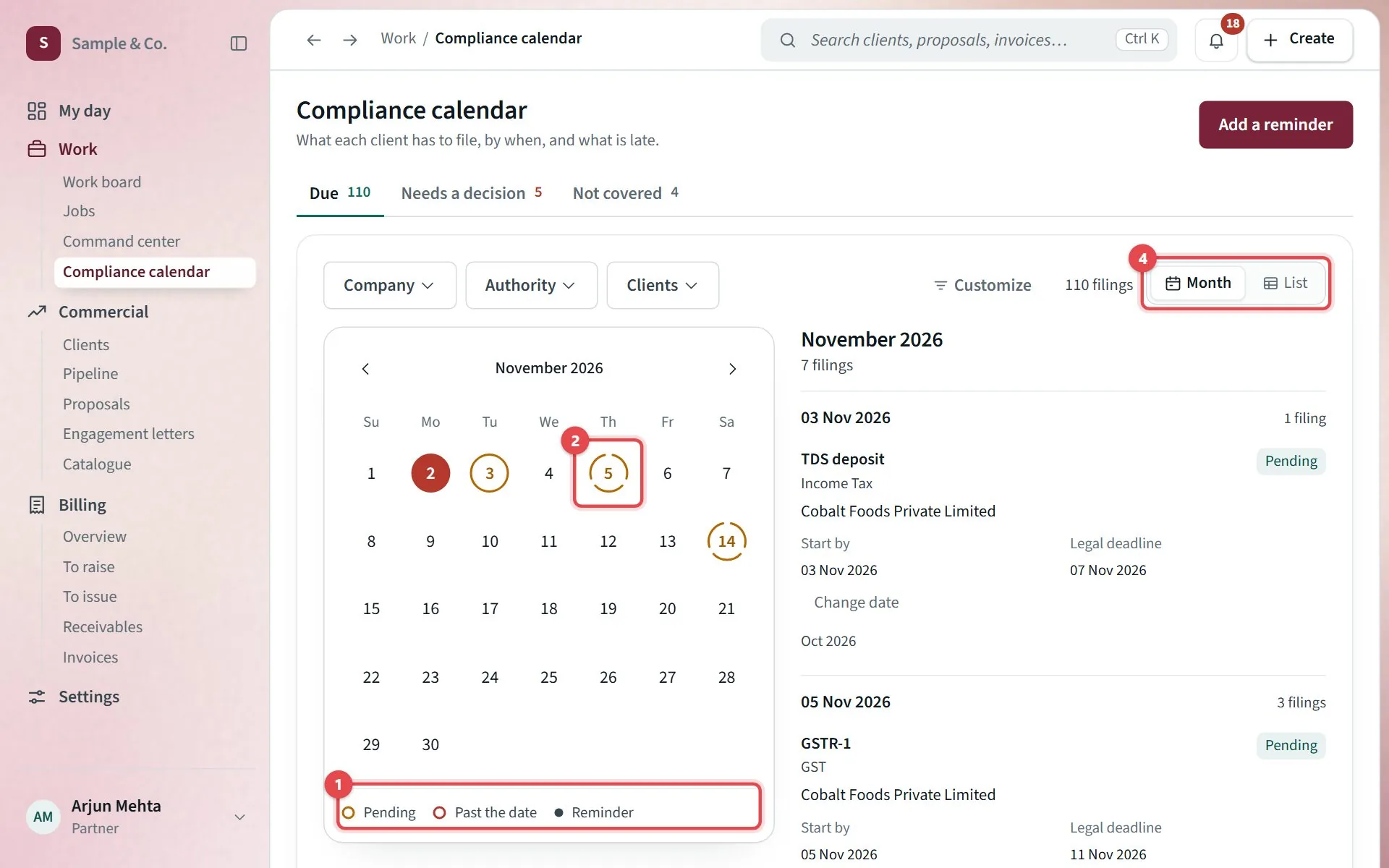 The month view.
-
Each filing shows its name, company, state, Start by, Legal deadline and period. Once its task exists, On the board opens the task.
-
Click List for a table: Filing, Company, Period, Start by, Legal deadline, State, 20 rows a page.
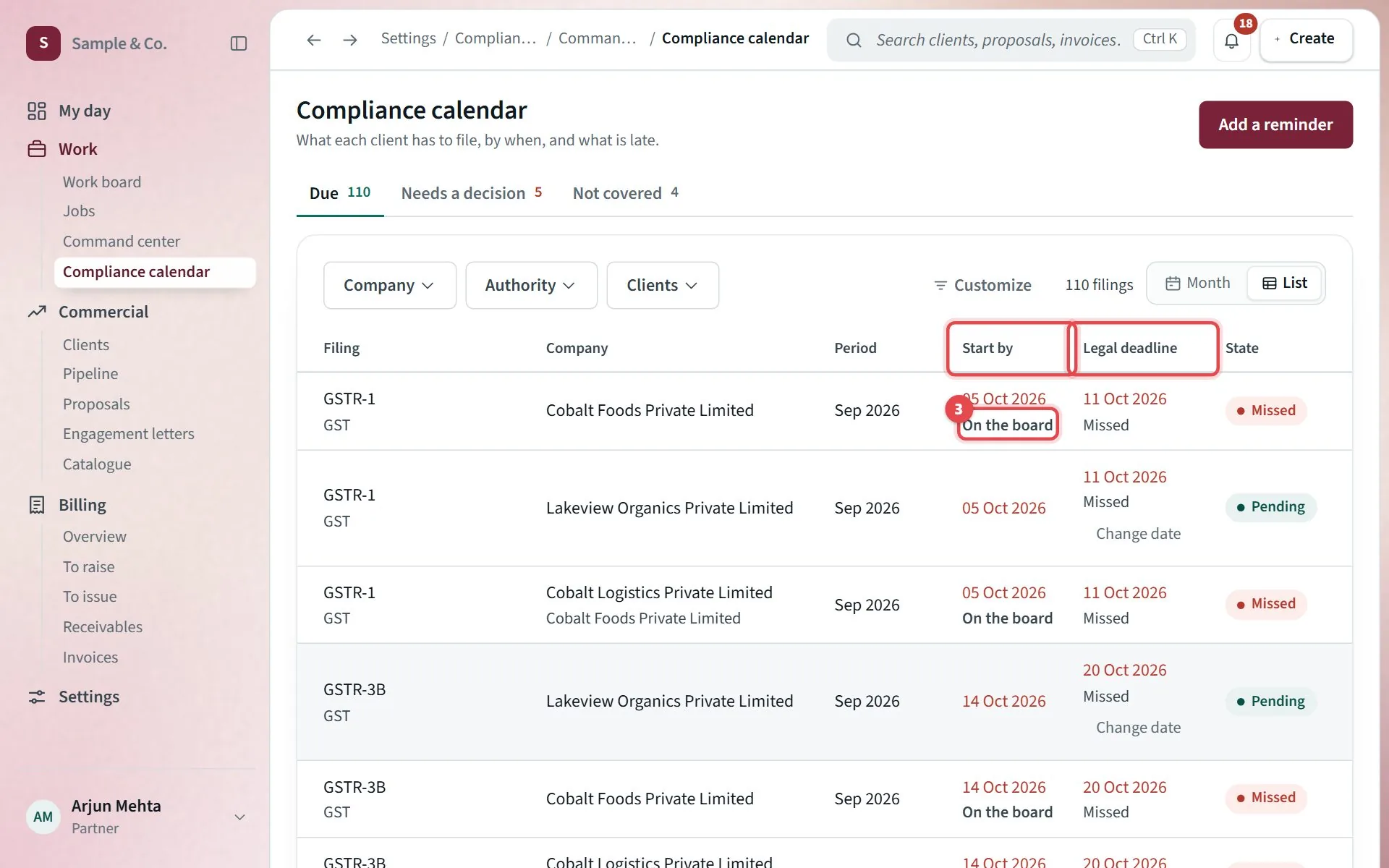 The list: the two dates side by side, and On the board to open the task.
The list is in Start by order, because that is when work must begin. A red Start by means the start date has passed. A red Legal deadline with "Missed" means the law's date has passed.
Filed and resolved filings are hidden. To see them, open Customize, tick Status, then choose Include filed and resolved.
Small words under a date.
- "Set by hand": someone changed this filing's date. Point at it to see the rule's date, who changed it and why.
- "Unconfirmed rule": the rule was unticked after this filing was made. Tell a partner.
| You see | Do this |
|---|---|
| "Nothing is on the calendar" | Open the Not covered tab to see why. |
| "Nothing matches these filters" | Click Clear all. |