Find your tasks on the Work board
Who can do it: Everyone
Where: Work › Work board
-
Open Work › Work board and choose a tab (1): Mine (your desk), Unassigned, To check, Escalated, By person, All tasks or Reports.
-
Switch between Board (a lane per state) and List (a table) (2).
-
Narrow the tasks with the search box ("e.g. T-1042 or GSTR-3B") and the filter buttons, such as Due and Priority (3). Customize chooses which buttons show.
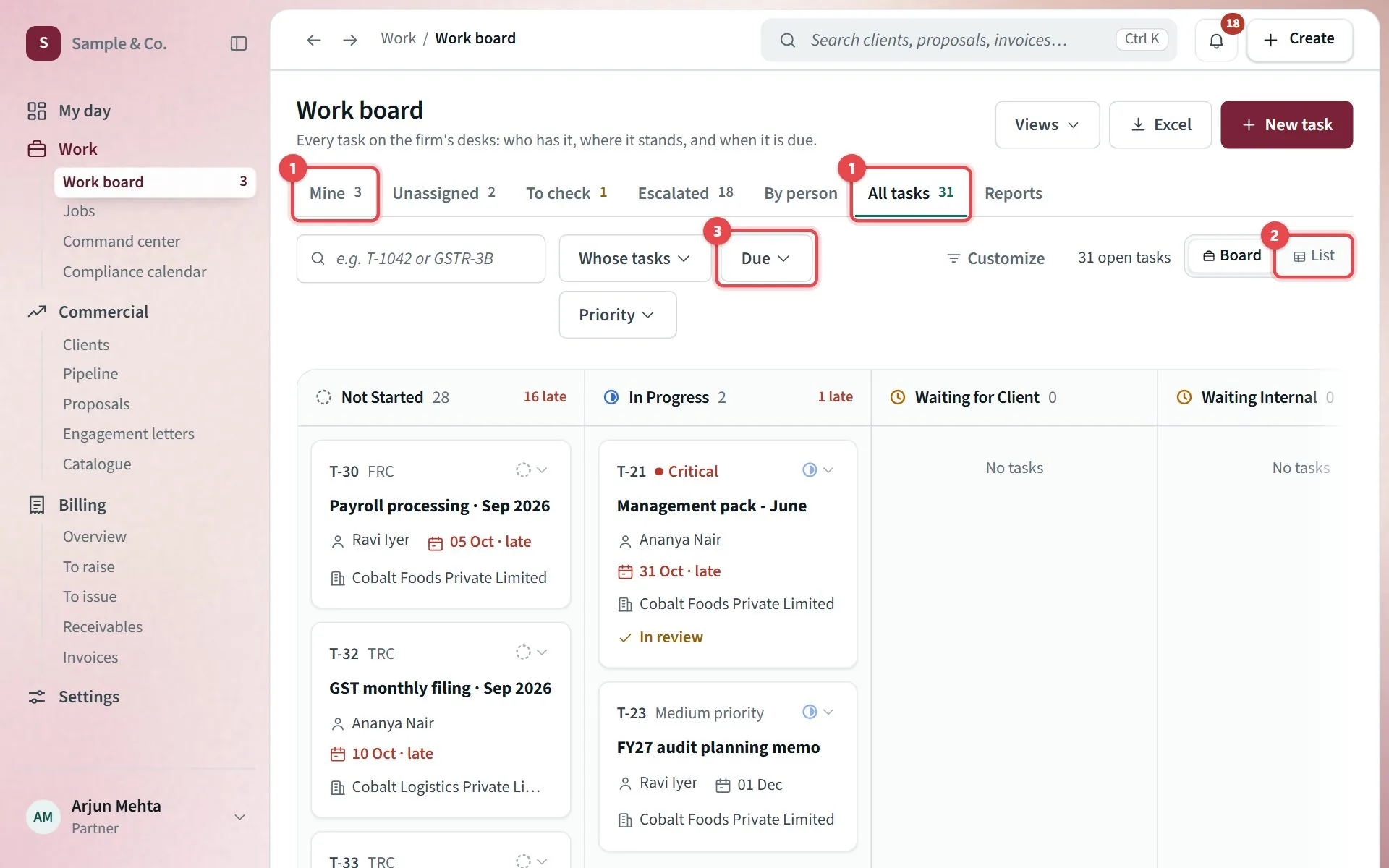 The Work board. Late work shows its date in red.
- Click a task to open it beside the board. Full page opens it on its own page.
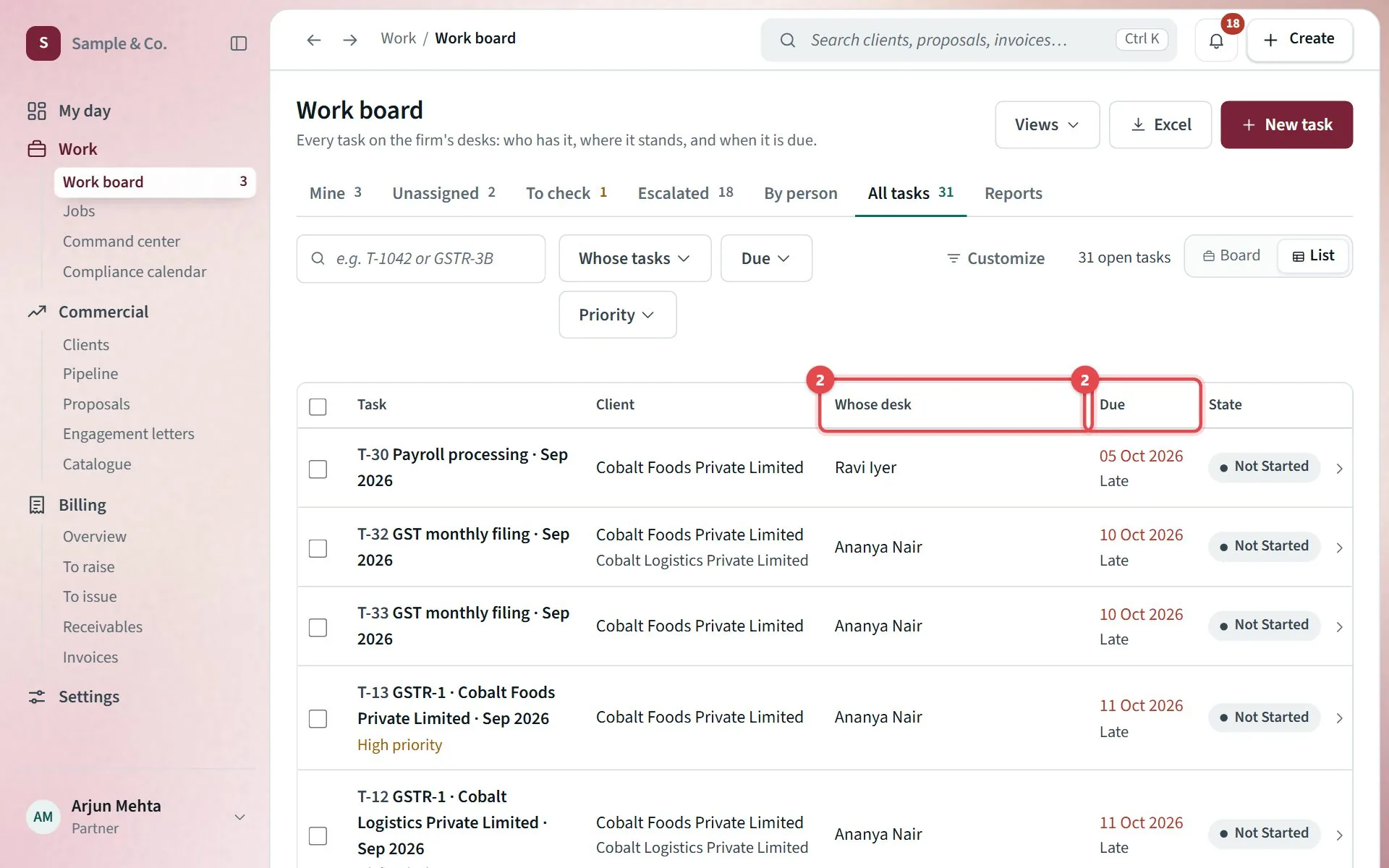 The same tasks as a list: whose desk, when due, what state (2).
To keep a set of filters, click Views › Save this view…, give it a Name, and click Save view. Excel downloads the tasks you are looking at.
A card shows the task's number, priority, title, due date (red with late when it has passed), client and whose desk it is on. A stuck task shows its reason in red:
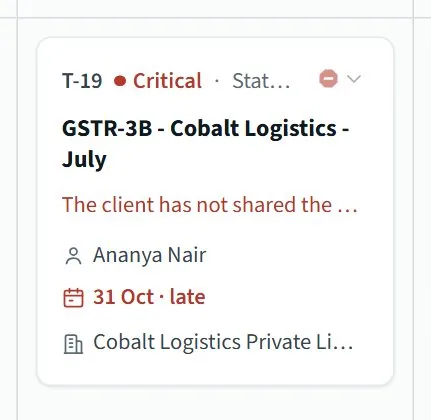 A blocked task. The reason is on the card for everyone to see.
Late means past the due date. For a filing's task, the due date is the Legal deadline, not the Start by day.
To hand out. A task marked To hand out came to the Key Manager because the client has no SPOC in that Dept. Give it to someone: click the person on the card and choose under Whose desk.