Write a process for a service
Who can do it: Partner or admin
Where: Settings › How work runs › Processes
Before you start: Know the service's steps in order. For a step someone must check, a rule under Who checks work helps (see "Choose who checks work"), but you can also write one from the step.
A process is the list of steps every job of a service walks through.
- Click Write a new process (1). Each card below is a process already in force.
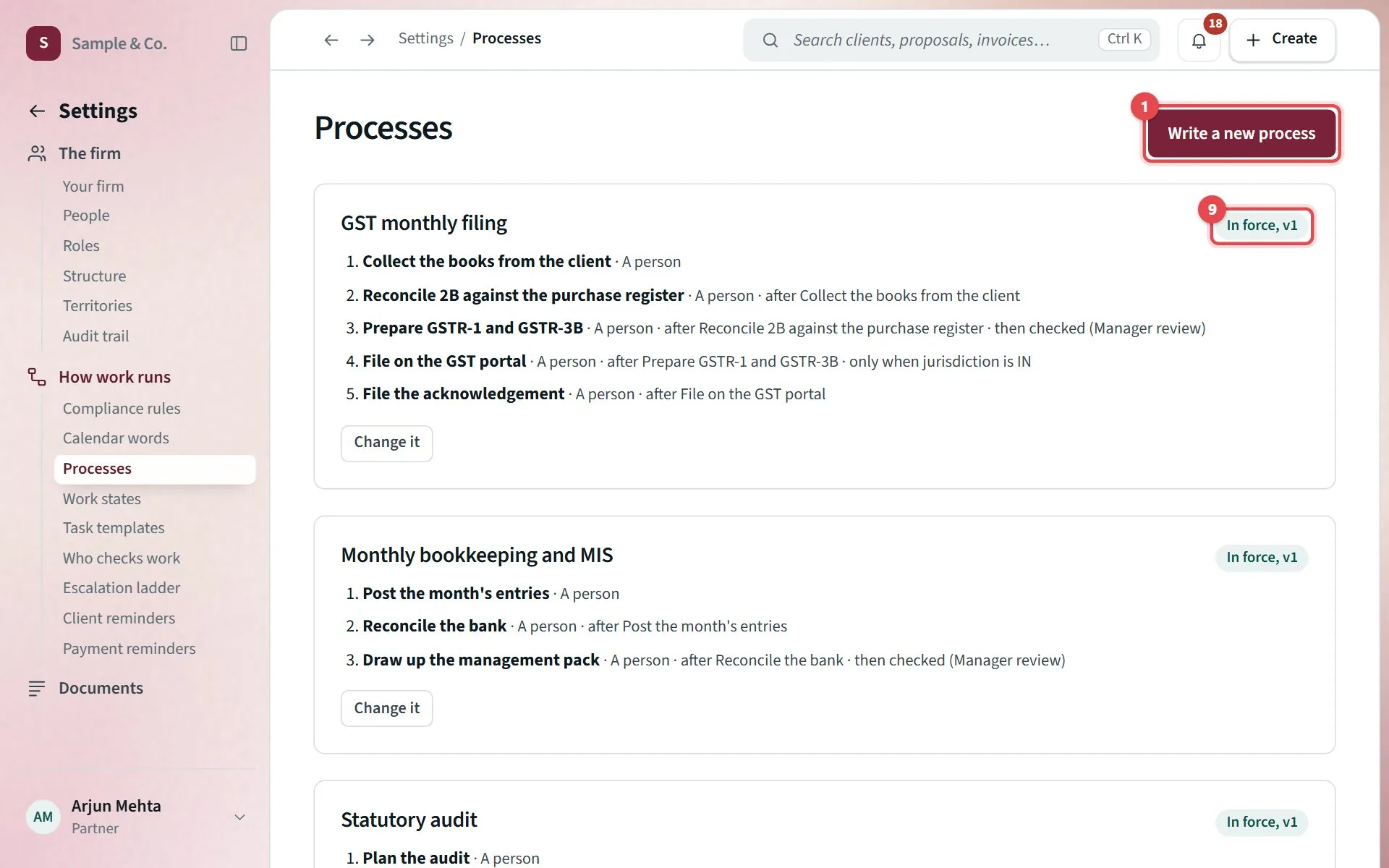 Processes in the sample firm. Each card lists its steps in order.
-
Type the Name, for example GST monthly filing.
-
Fill in the first step:
- Step: what is done, for example Reconcile 2B against the purchase register.
- Who does it: choose A person.
- From role and To role (optional): who may do it. Anybody is the default.
-
Under Waits for (3), tick the steps that must be done first. A new step waits for the one before it.
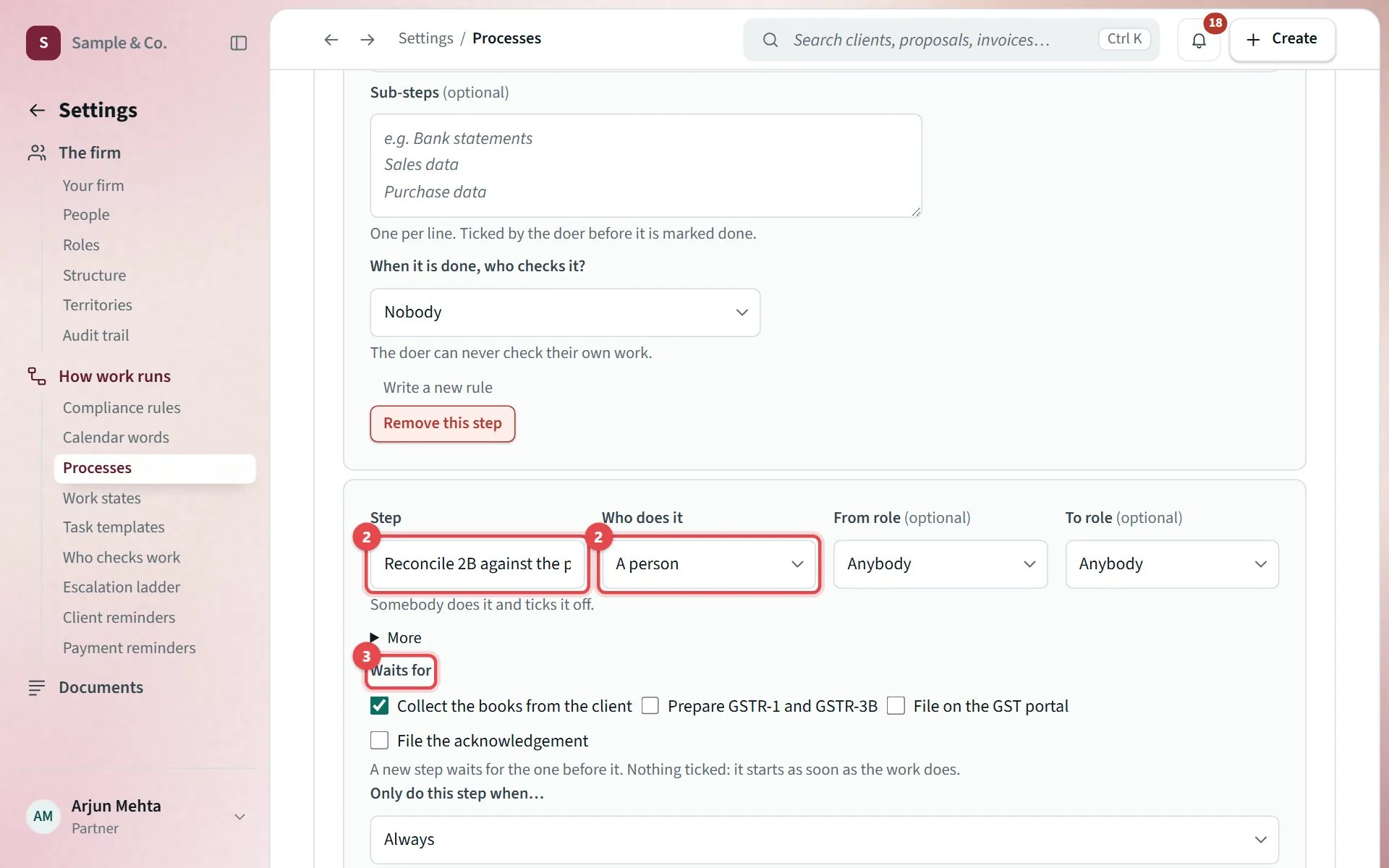 One step being written: what it is and who does it (2), and what it waits for (3).
-
Optional: Only do this step when… limits a step to some companies. For example
Where the entity is registered, …it is, …this IN runs File on the GST portal only for
Indian companies.
-
Optional: Sub-steps, one per line. The person doing the step ticks them before Done.
-
Choose When it is done, who checks it? (6): a rule, or Nobody. If you choose a rule you can add
Review points, which the checker ticks before approving.
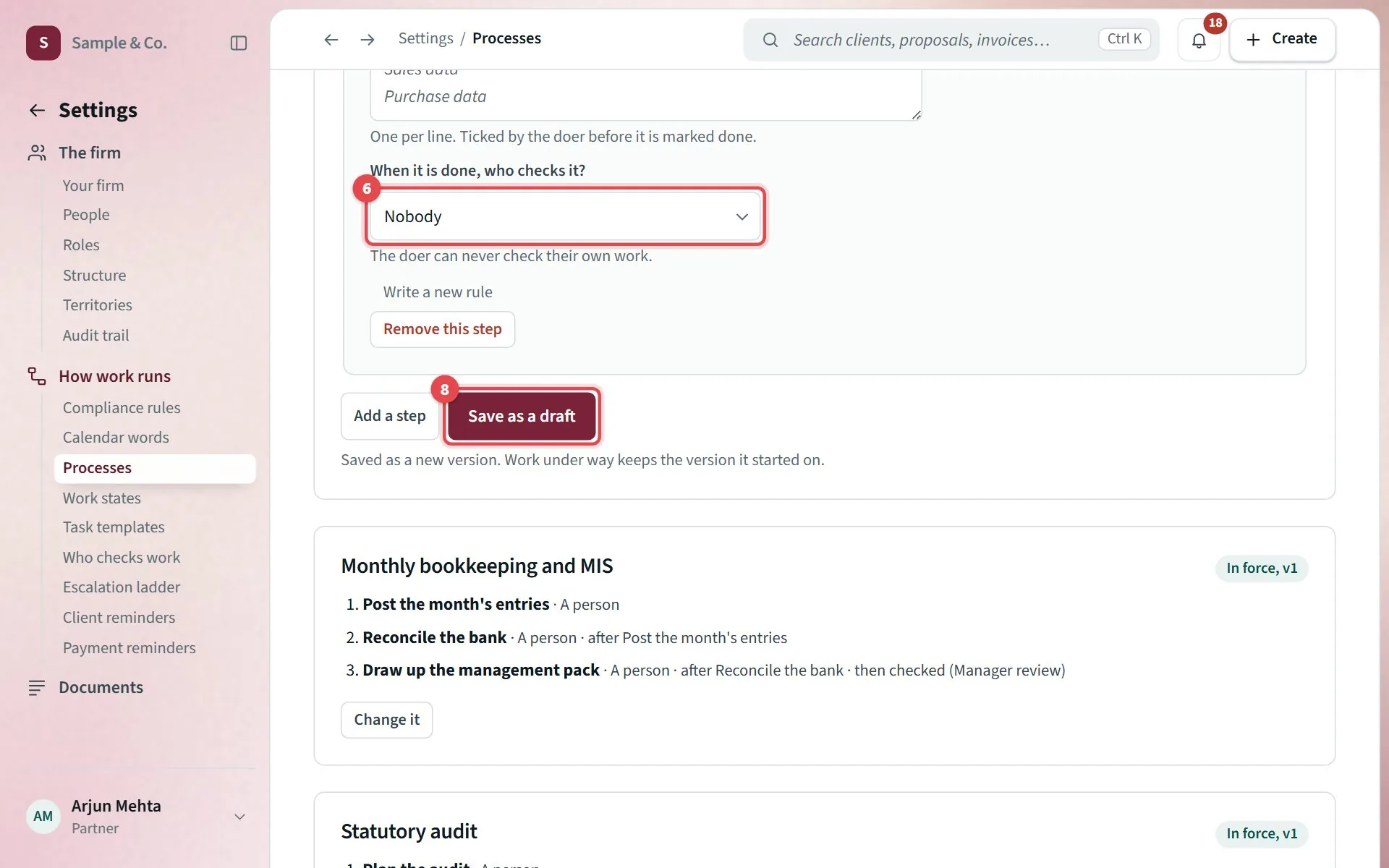 The checking rule on a step (6), and Save as a draft (8).
-
Click Add a step for the next step. Repeat steps 3–7 for each one. Remove this step drops one.
-
Click Save as a draft (8). BiB says "Saved as a draft. Nothing follows it until you put it in force."
-
Click Put v1 in force. The card now shows In force, v1 (9).
-
Link the process to its service: go to Commercial › Catalogue , open the service, and choose the
process under How it is delivered (chapter Services and the letter format).
The next job of that service follows these steps. Jobs that are already running are not changed.
A process does nothing until a service names it. In the sample firm, Payroll processing names no process. Its jobs show No process yet on Jobs, and no steps open. Fix it in the Catalogue under How it is delivered.
Choose A person under Who does it. Automatically and Automatically, then a person approves have nothing automated behind them yet. The step falls to a person anyway, so choose A person.
A step for one country only. Use Only do this step when… instead of writing two processes. One GST process with File on the GST portal set to Where the entity is registered is IN covers every company.