Choose who checks work
Who can do it: Partner or admin
Where: Settings › How work runs › Who checks work (the page is called Who checks the work)
Nobody can ever approve their own work. This rule is built in. Here you choose who else may check it.
-
Read the box at the top (1). Each card below is a rule.
-
Click Write a rule (2).
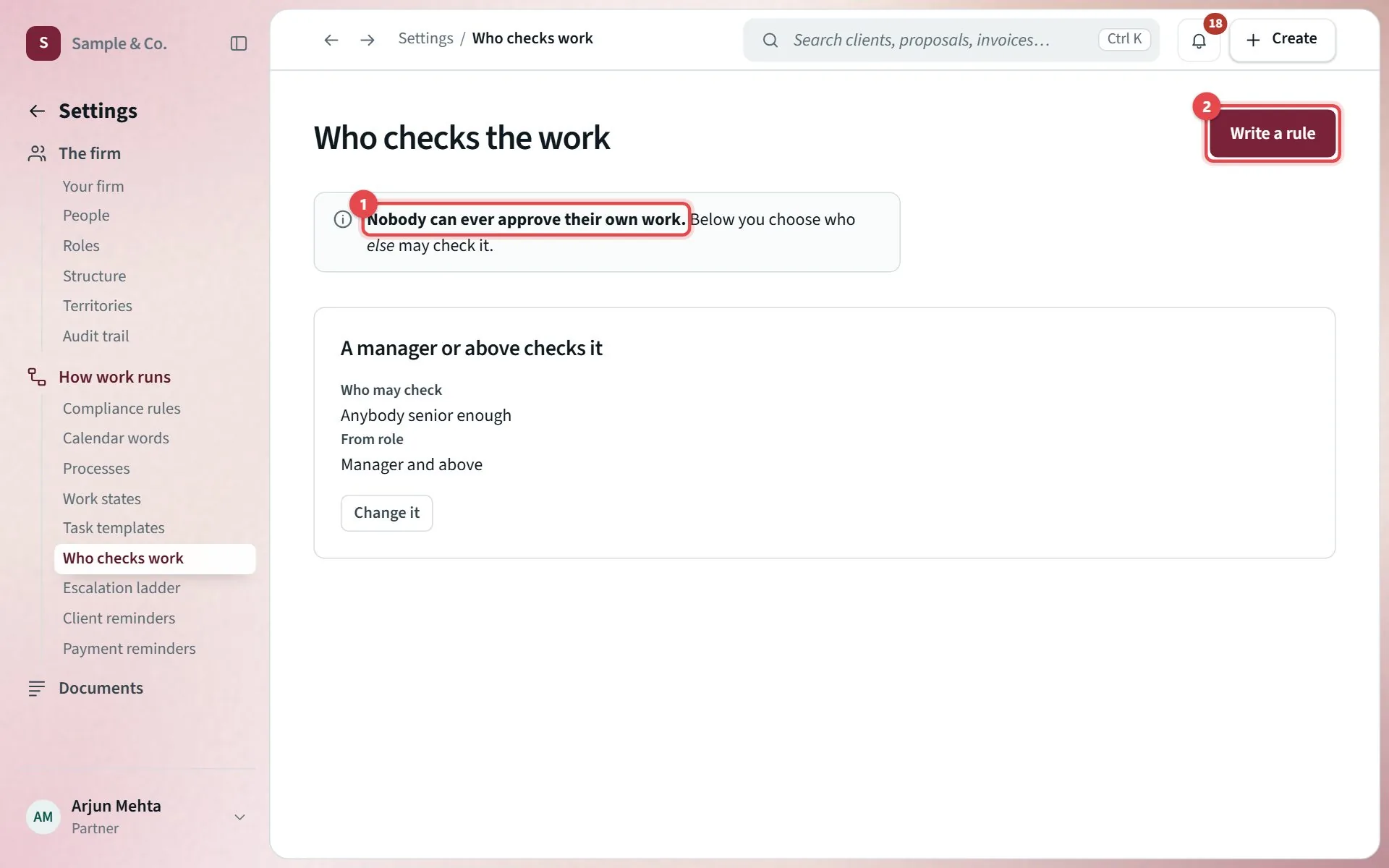 The sample firm's rule: a manager or above checks it.
-
Type What to call it, for example Key Manager review.
-
Under Who may check it, choose one of the four rules in the table below. For a role, pick
From which role up.
-
Optional: Add a second check (and a third) for work that needs two people.
-
Click Save as a draft, then Put it in force on the rule's card.
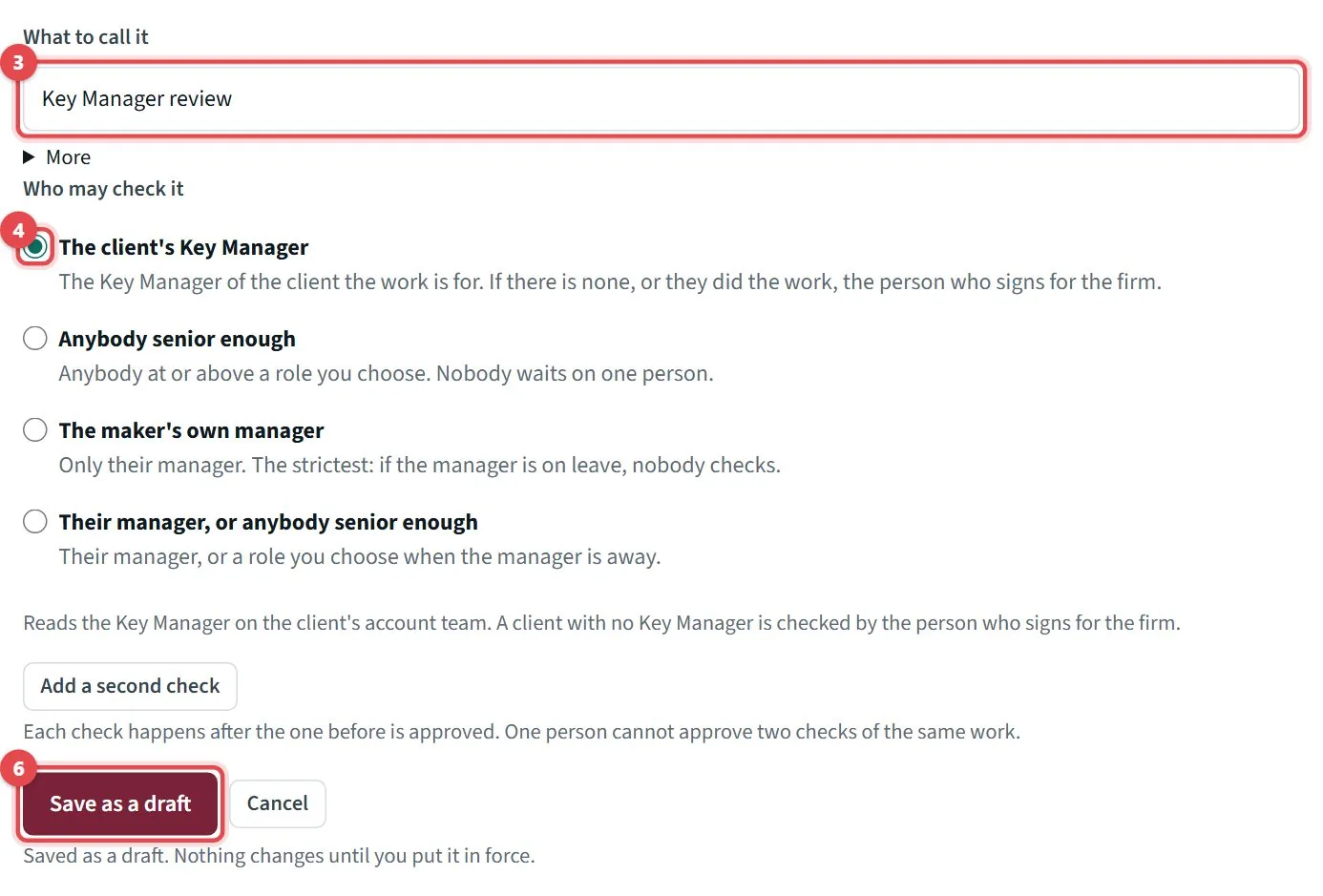 A new rule being written: its name (3), who may check (4), Save as a draft (6).
-
Use the rule: choose it in a step's When it is done, who checks it? on Processes. Tasks sent for
review use the rules in force.
| Choice | Who checks |
|---|---|
| The client's Key Manager | The client's Key Manager. If there is none, or they did the work, the person who signs for the firm. |
| Anybody senior enough | Anybody at or above the role you pick in From which role up. |
| The maker's own manager | Only the manager of the person who did the work. |
| Their manager, or anybody senior enough | Their manager, or a role you pick when the manager is away. |
"The maker's own manager" can leave work stuck. Example: Ananya reports to Ravi. With this rule only Ravi may check her work. If Ravi is on leave, nobody can. Their manager, or anybody senior enough avoids that.
With no rule in force… a task can be checked by anyone except the person who did it, and process steps are not checked at all. A changed rule applies to new checks; checks already open keep the rule they started with.
| You see | Do this |
|---|---|
| "No role has a seniority yet. Set one on Roles, or choose the manager rule." | Give your roles a seniority on Settings › The firm › Roles , or pick The maker's own manager. |