Bring in your existing clients from Excel
Who can do it: Partner (admin) only. Others do not see Import.
Where: Commercial › Clients , then Import
Before you start: Your services are in Commercial › Catalogue (the sheet uses their codes). Your colleagues are in BiB with their Depts. If you import work that started months ago, set "ask about deadlines from" under Settings › How work runs › Compliance rules first.
This is how a firm brings in the clients it already serves, with their directors and the work it already does for them. Nothing is saved until you have seen a full check of every row.
- Click Import, then Download all templates. You get three sheets:
- Clients ("Your client companies.") — required.
- People ("Directors and signatories.") — optional.
- Engagements ("Work you already deliver.") — optional.
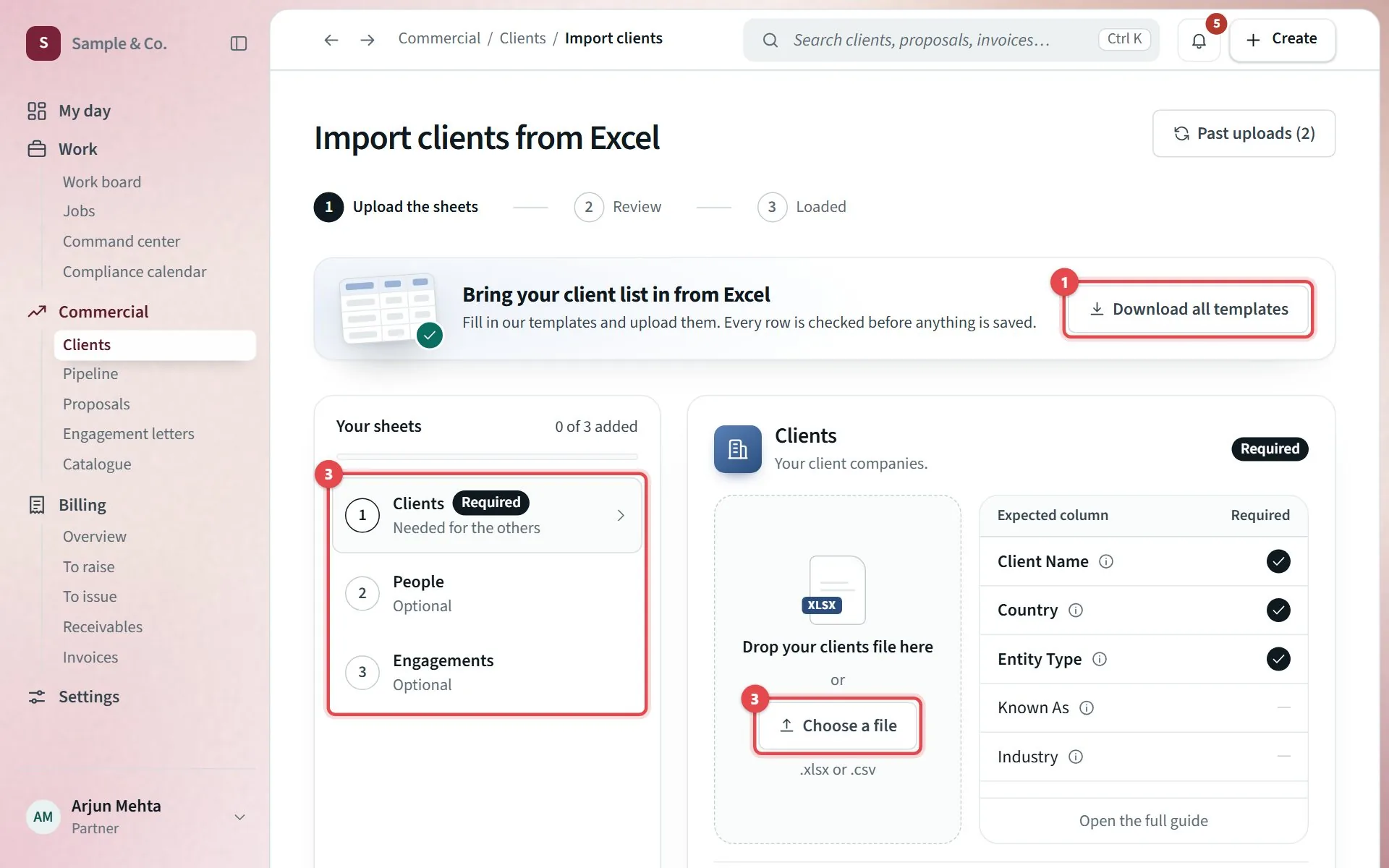 The import page. Download the templates, then add each filled sheet.
-
Fill in the sheets. The columns are listed below. Click any column name on the page to see what goes in it, or click What goes in each column.
-
Back on the page, click a sheet's name on the left (Clients, People, Engagements), then drop the file in the box or click Choose a file. Use .xlsx or .csv.
-
Click Check the sheet (or Check 3 sheets). Nothing is saved yet: BiB checks every row and opens the Review step.
-
Read the result at the top: it counts the Clients, People, Engagements and Letters the upload holds, and the rows To fix. Then read the Row by row table. Each row says what it Will be: New, Already on file, or Blocked, with What to fix. If any row is blocked, fix it in your sheet and click Upload again.
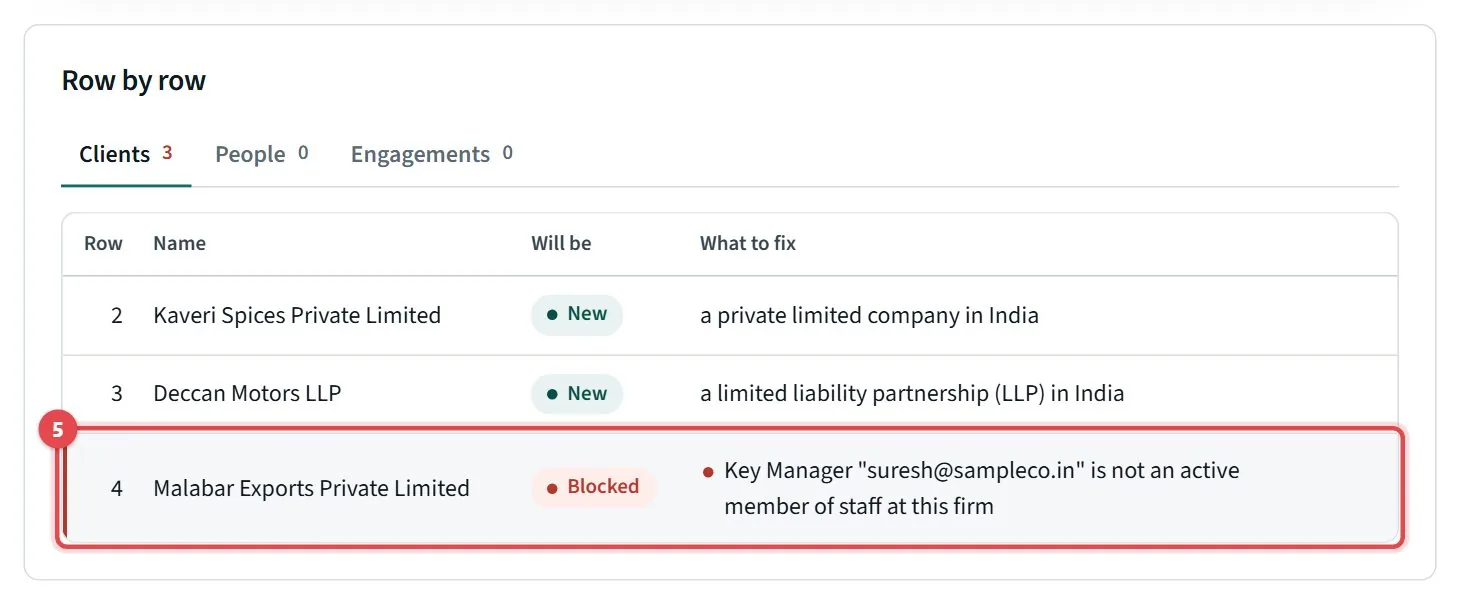 One row is blocked: its Key Manager's email is not a colleague in BiB.
- When the title says "Ready to load …", click Load … clients.
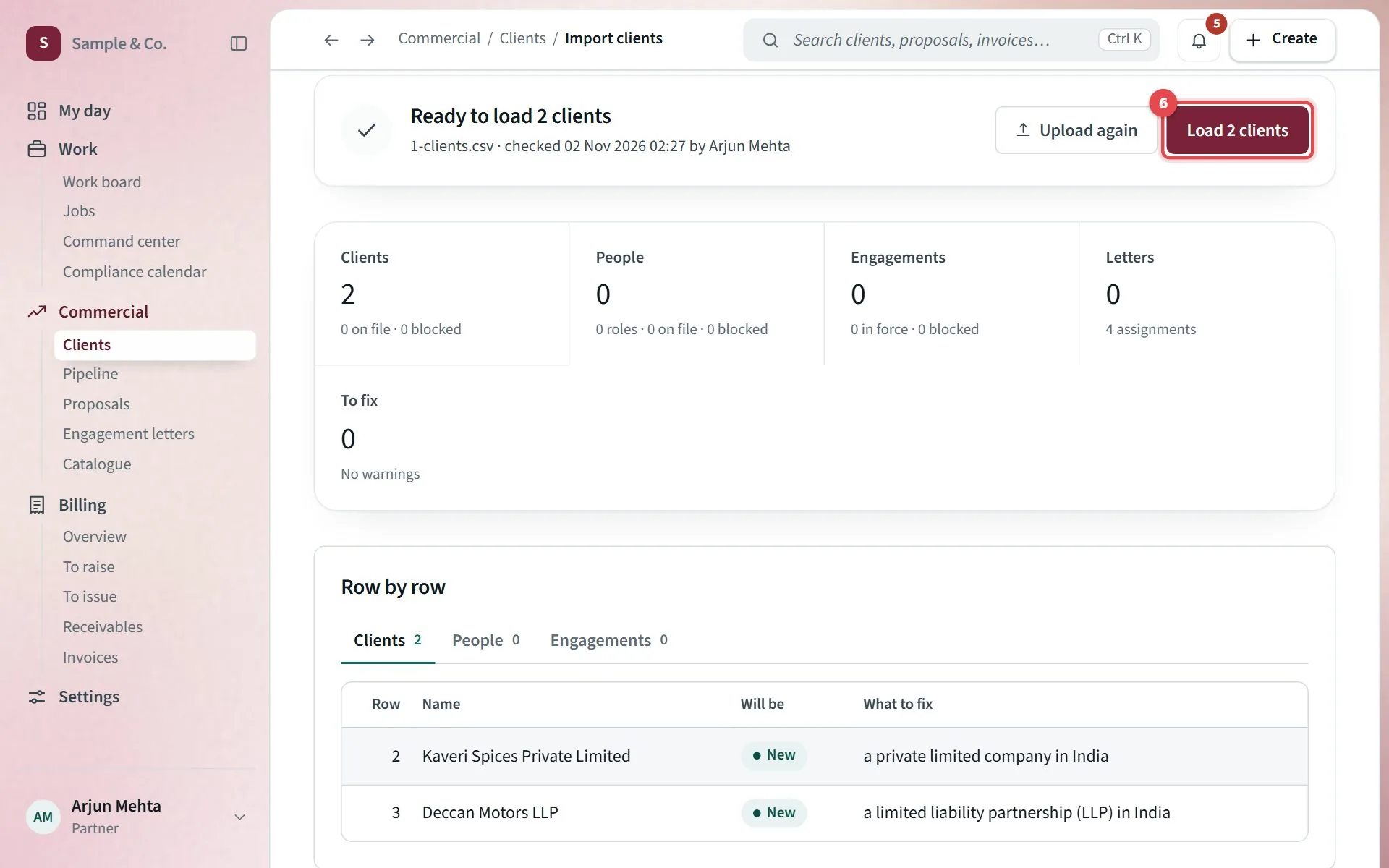 Every row checks out. Load 2 clients saves them.
- The last step, Loaded, shows What each row became. Click Import more for another batch. Earlier uploads are under Past uploads.
One blocked row stops the whole load. Example: 49 good rows and 1 row with a wrong service code: nothing is loaded until that row is fixed. This keeps half a client list from going in.
Write dates the safe way. In the template, type dates as you normally do. In a .csv you made yourself, write 11- Jun-2019 or 2019-06-11, never 11/06/2019.
Spell each client the same on all three sheets. The People and Engagements sheets find the client by its Client Name. "Kaveri Spices Pvt Ltd" on one sheet and "Kaveri Spices Private Limited" on another are two different names.
Running the same sheet again is safe. Clients already in BiB are skipped as Already on file. An import never changes an existing client: correct those on the client's own page.
The Clients sheet (one row per company)
| Column | Required | What goes in it |
|---|---|---|
| Client Name | Yes | The registered name, as it should print on a letter. Spell it the same on all 3 sheets. |
| Country | Yes | Two letters: IN, AE, SG, GB, US. |
| Entity Type | Yes | Pick from the list, for example private_limited or llp. |
| Known As | No | The trading name, if different. |
| Industry, Website | No | Free text. |
| Client Since | No | When the relationship began. |
| Group | No | Leave blank for most rows. A client's name here makes this row a company inside that client's group. |
| Incorporated On | No | A date. |
| Financial Year End | Outside India | MM-DD, for example 12-31. Leave blank for an Indian company. |
| Tax Return Period | No | For UAE VAT, for example "VAT quarterly Feb". |
| Registered Address | No | One cell, as on the certificate. |
| PAN, GSTIN, CIN, LLPIN, TAN, UEN, TRN, EIN, CRN, VAT | No | One column each. Leave blank if none. |
| Key Manager | No | Pick from the list: the colleague who owns the client. |
| SPOC 1 Dept, SPOC 1 Email (then SPOC 2…, SPOC 3…) | No | A pair per SPOC: the Dept's code, then that colleague's login email. Need a fourth? Add "SPOC 4 Dept" and "SPOC 4 Email". |
| Signatory | No | Who signed the paper letter for the client. |
| Portal Invite | No | TRUE to invite the client to the client portal, FALSE or blank to send nothing. |
| Portal Email | With Portal Invite | The client's own login email. Needed when Portal Invite is TRUE. |
The People sheet (one row per person per role)
| Column | Required | What goes in it |
|---|---|---|
| Client | Yes | Exactly the Client Name from the Clients sheet. |
| Of | No | A company in the group, if the role is not at the client itself. |
| Name | Yes | Full name. |
| Relationship | Yes | director, signatory, shareholder or employee. |
| Since | No | When the role began. |
| No | Also how a later import recognises the same person. | |
| Phone | No | With the country code, for example +91 98200 12345. |
A director who is also the signatory takes two rows.
The Engagements sheet (one row per service per company)
| Column | Required | What goes in it |
|---|---|---|
| Company | Yes | Exactly the Client Name from the Clients sheet. |
| Service | Yes | Pick from the list: the service's code from your catalogue. |
| Started On | Yes | When you began delivering it. Not a future date. |
| Billed | No | one_time, monthly, quarterly, annually or custom. |
| Fee | No | Digits only, per period. Blank means "as per the paper letter". |
| Currency | With a Fee | Three letters, for example INR. |
| Where | No | Two-letter country, only if the work is not in the company's own country. |
| Basis | No | Where the signed paper letter is kept. |
| Package | No | One name for services billed under one fee. Write the fee once, on one of its rows. |
What the import creates
- Each client, with its registration, numbers, people and account team.
- For each client, one engagement letter already marked signed, named "…: engagements on file". It records the work you already do. Nothing is emailed to the client and nobody is asked to sign.
- One engagement per row of the Engagements sheet. Like any signed work, these wait in Work › Command center until someone approves their work and billing (see the work chapter).
- A portal invitation email, only for rows with Portal Invite TRUE.
| You see | Do this |
|---|---|
| "Add the Clients file. The other two sheets refer to it." | Add the Clients sheet. People and Engagements cannot load without it. |
| "… problems to fix before loading" | Read What to fix on each Blocked row, correct your sheet, and click Upload again. |
| Key Manager "…" is not an active member of staff at this firm | Use the login email of a colleague who is in BiB (see Settings › The firm › People ). |
| "… engagements started before … The calendar looks back ninety days…" | Set "ask about deadlines from" under Compliance rules first, or every old filing will show as missed. |